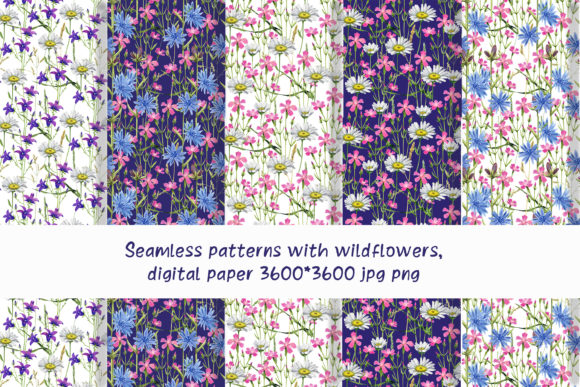
Seamless Patterns with Wildflowers
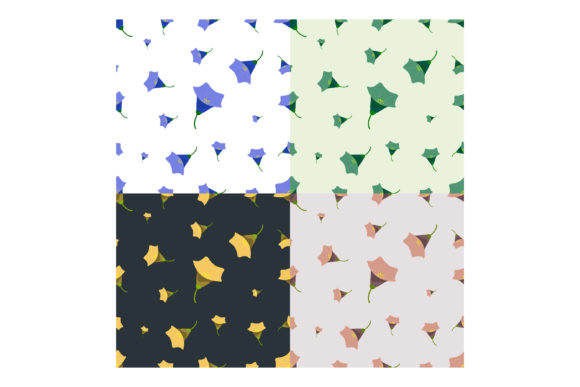
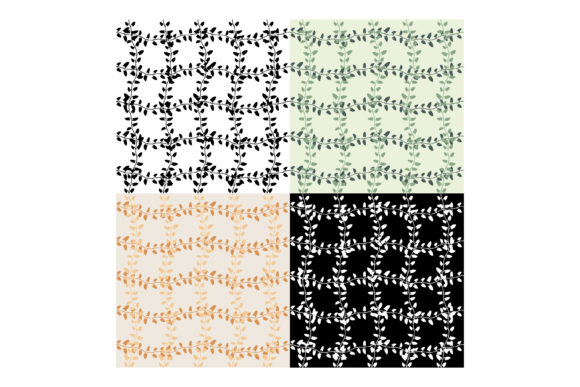
If you have ever tried to create a consistent background, wrap a product mockup, or design printable stationery that repeats without awkward lines, you already know the difference between a good pattern and a frustrating one. Seamless Patterns with Wildflowers are digital files designed to solve that exact problem. They give you six distinct designs at 3600 by 3600 pixels, 300 dpi, in both JPG and PNG formats. You download them, place them into your project, and the pattern tiles endlessly without visible seams. That sounds straightforward, but there are several ways people run into trouble with these files. Understanding what they are and what they are not will save you time, money, and a lot of trial and error.
Many buyers see the term seamless and assume it means automatic in every sense. The pattern itself tiles perfectly, but you still need to set it up correctly in your design software. The wildflower motifs are already arranged so that edges match, colors flow, and repeating blocks disappear. Yet how you apply that repeating block matters just as much as the file quality. If you fill a shape in Illustrator, set a background in Canva, or tile a texture in Photoshop, you need to tell the program to repeat the image. The seamlessness is in the file, not in the import process. That distinction seems small, but it is where most frustrations begin.
Another common oversight involves mixing up JPG and PNG files for the wrong use case. Both files are included in the purchase, each at full resolution. The JPG version gives you a smaller file size with a solid white background. That works beautifully for print projects where you want an opaque backdrop, such as gift wrap, scrapbook pages, or fabric printing. The PNG version preserves transparency, which is essential when you want the wildflowers to float over a colored background, a photograph, or a layered design. Grabbing the wrong format can mean extra hours cutting out backgrounds or dealing with unwanted white edges. Save yourself that work by deciding before you open the file whether you need transparency or not.
Overlooking the True Scale of the Design
When you see a pattern preview on a screen, it is easy to misjudge how it will look at actual size. These wildflower patterns are 3600 pixels wide at 300 dpi. That translates to twelve inches of printed pattern at full resolution. If you scale the pattern down significantly for a small label or a phone case, the flowers become tiny and dense. If you scale it up beyond its natural dimensions, the flowers pixelate and lose crispness. The better approach is to test the pattern at the actual intended size before committing to a full production run. Print a small sample or preview it at 100 percent zoom in your software. This single step prevents the disappointment of a pattern that feels too busy or too sparse once it is applied to a real object.
People also forget that 300 dpi is ideal for print but far more than you need for web or digital use. If you plan to use the design online, you can safely reduce the resolution to 72 dpi and resize the image down to 1200 or 1800 pixels. That keeps load times fast and still looks sharp on screens. But keep the original files untouched. Once you downsample and save over the original, you cannot recover the full print resolution. Store the 3600 by 3600 versions as your master files and work from copies.
Misunderstanding the Digital Nature of the Product
This is a digital download. No physical items arrive in your mailbox. That fact sounds obvious, but support conversations often reveal that someone expected printed paper samples or a shipped USB drive. The files you receive are digital assets that you can use in virtually any design software that supports standard image formats. Because nothing is physically shipped, you get instant access after purchase, no shipping costs, and no risk of damaged goods in transit. However, you also take responsibility for backing up your files. Download them promptly, store them in at least two locations, and keep a copy of the receipt in case you need to request a re-download later. Many sellers have a download window, and once it expires, recovering files can be difficult or impossible.
Another detail that catches people off guard: the layouts shown in the product images are demonstrations of what you can create. They are not included in the delivery package. The mockup displays a notebook, a phone case, or wrapping paper to show how the pattern might look in use, but the actual delivery contains only the six seamless pattern files and nothing else. If you see a scene with multiple products arranged together, that is a styled presentation, not a file you can edit. Plan your own layouts or templates separately.
Failing to Verify Compatibility Before Purchase
Some buyers assume that PNG and JPG files work in every program without limitation. Most mainstream design applications handle these formats, but there are exceptions. Older software, certain free tools, and some mobile apps may struggle with high-resolution images or with transparency in PNGs. Before you buy, confirm that your chosen application supports importing images at 3600 pixels wide and can tile them as repeating backgrounds. A quick test with any large image will tell you whether your software chokes on the file size. If it does, you may need to work in a lower-resolution copy or use a different program. That is far better to discover before you have a deadline and a pattern that will not load.
It is also worth checking whether your software respects the color profile embedded in the image. Most digital patterns come in sRGB, which is the standard for web and commercial printing. If your software misreads the color profile, the wildflowers might look washed out or overly saturated. When that happens, manually assign sRGB in your software or convert the image to your working space. The pattern itself is correct, but color management settings can alter the appearance.
Rushing Into Large Projects Without Small Tests
The excitement of new wildflower patterns often leads people to print an entire batch of products or publish a full website background before verifying how the pattern performs. A single test tile can reveal issues that you cannot see on the preview. Print one sample sheet. Apply the pattern to a single mockup. Load it on one page of your site. Check how the repeat interacts with edges, how the colors look on your specific printer, and whether the pattern competes with text or other elements. Wildflower designs tend to be busy by nature because they contain organic shapes, leaves, and blossoms. That complexity can overwhelm a layout if the pattern is placed behind important content. Reducing opacity, scaling the pattern slightly larger, or using the PNG version to mask the pattern behind a semi-transparent overlay can bring balance without losing the floral look.
Another mistake that becomes obvious only after production: not accounting for bleed and trim. If you are printing business cards, stickers, or packaging, the pattern needs to extend beyond the cut line so that no white edges appear after trimming. The 3600-pixel size gives you plenty of room to create a bleed area, but you must manually extend the pattern in your layout file or set the tiling to cover the full bleed zone. The pattern itself is seamless, but the way you position it inside your document determines whether the final product has a clean edge.
Ignoring the Practicalities of Storage and Organization
Digital pattern files accumulate faster than most people expect. Six patterns in two formats means twelve files. If you download them to your desktop and never rename or organize them, you will eventually have folders full of generic file names that make no sense six months later. Create a folder structure that includes the collection name, file format, and a brief description of the color palette or flower style. Rename the files before you store them. That small habit transforms a jumble of numbers into a searchable library. When you need a specific wildflower pattern for a client project next year, you will find it in seconds instead of scanning through dozens of thumbnails.
Backups are not optional for digital products. Hard drives fail, computers get replaced, and online storage services sometimes suspend accounts. Keep one copy on your local machine and one in cloud storage. If the seller offers re-downloads for a limited time, download the files again as a backup, but do not rely on that option indefinitely. Ownership of the files is permanent, but access to the original download link often is not.
Making Assumptions About Commercial Use
Every seller sets their own terms for how you can use digital patterns. Some allow unlimited commercial use, meaning you can sell products made with the pattern without restrictions. Others limit use to personal projects or cap the number of copies you can produce. The product description here states that the patterns are digital downloads and that layouts are not included, but it does not explicitly detail commercial terms in the snippet provided. That is a detail you must verify before you use the patterns in products you intend to sell. Contact the seller if the terms are not clearly stated. Using a pattern in a commercial product without proper rights can lead to takedowns or legal issues. Most sellers are happy to clarify, and many offer generous commercial licenses. But never assume it is allowed just because the file is for sale.
Even when commercial use is permitted, there is usually a restriction against reselling the pattern itself. You cannot bundle the original digital files with other products and sell them as a pattern collection. You can use the pattern to create physical goods, digital templates, or printed materials, but the raw files should not be distributed. That distinction protects the creator and ensures that buyers who purchase the design are the only ones who benefit from its use.
Choosing the Wrong Color Palette for the Application
Wildflower patterns range from soft pastels to vibrant meadow tones. The specific set you are considering likely has a curated palette, but you need to evaluate whether those colors suit your project. A pattern that looks lovely as a full-screen digital wallpaper may clash with your brand colors or overwhelm a subtle invitation suite. Test the pattern next to the other elements in your design. If the colors fight, you have three options: choose a different pattern, adjust the hue and saturation in your software, or use the PNG version with transparency and overlay a tinted layer on top. Shifting the overall color cast of a pattern is possible, but it works best when you start with a high-resolution file and work non-destructively with adjustment layers.
Another color concern involves printing differences. Screens display colors with backlighting, which makes designs look brighter and more saturated than they appear on printed paper. That is true for inkjet printers, commercial offset printing, and even photo labs. If color accuracy matters for your project, request a printed proof from your print provider or print a small test yourself. Adjust the pattern's brightness or contrast if the print comes out too dark or too muted. The digital file is correct, but the translation to ink always introduces variation.
Thinking That Seamless Means Effortless in Every Tool
Some design applications require you to define a pattern swatch manually. Others, like Canva or Procreate, handle tiling differently. Seamless Patterns with Wildflowers tile perfectly at the pixel level, but you still need to know how your specific tool repeats images. In Adobe Photoshop, you can define the image as a pattern and fill a layer. In Illustrator, you drag the image into the Swatches panel and apply it as a fill. In Canva, you upload the image and use the repeat feature. Each tool uses different terminology, but the principle is the same: the software must know that the image should be repeated in a grid. Read the documentation for your tool if the pattern does not tile immediately. The files are not broken, and the design is correct. The missing step is usually a setting buried in a menu.
If you are designing for fabric or wallpaper production, you may need to provide the pattern in a specific format that the manufacturer requires. Some production facilities ask for TIFF files, vector patterns, or particular color spaces. The JPG and PNG files you receive are a starting point. You may need to convert them to meet the manufacturer's specifications. Confirm those requirements before submit to avoid last-minute conversions that reduce quality.
Seamless Patterns with Wildflowers offer a ready-to-use foundation for countless projects. The six designs give you variety, the dual formats give you flexibility, and the high resolution gives you print-ready quality. But the best pattern in the world still requires thoughtful application. Check your file formats, test at actual size, verify your software compatibility, and respect the terms of use. That combination of good files and smart execution turns a simple download into a finished product that looks intentional and professional.